

Profile
A Profile represents your complete layout setup. It contains everything needed to control and automate your model train layout: the track plan, vehicles, automation elements, and the connection settings for your command station.
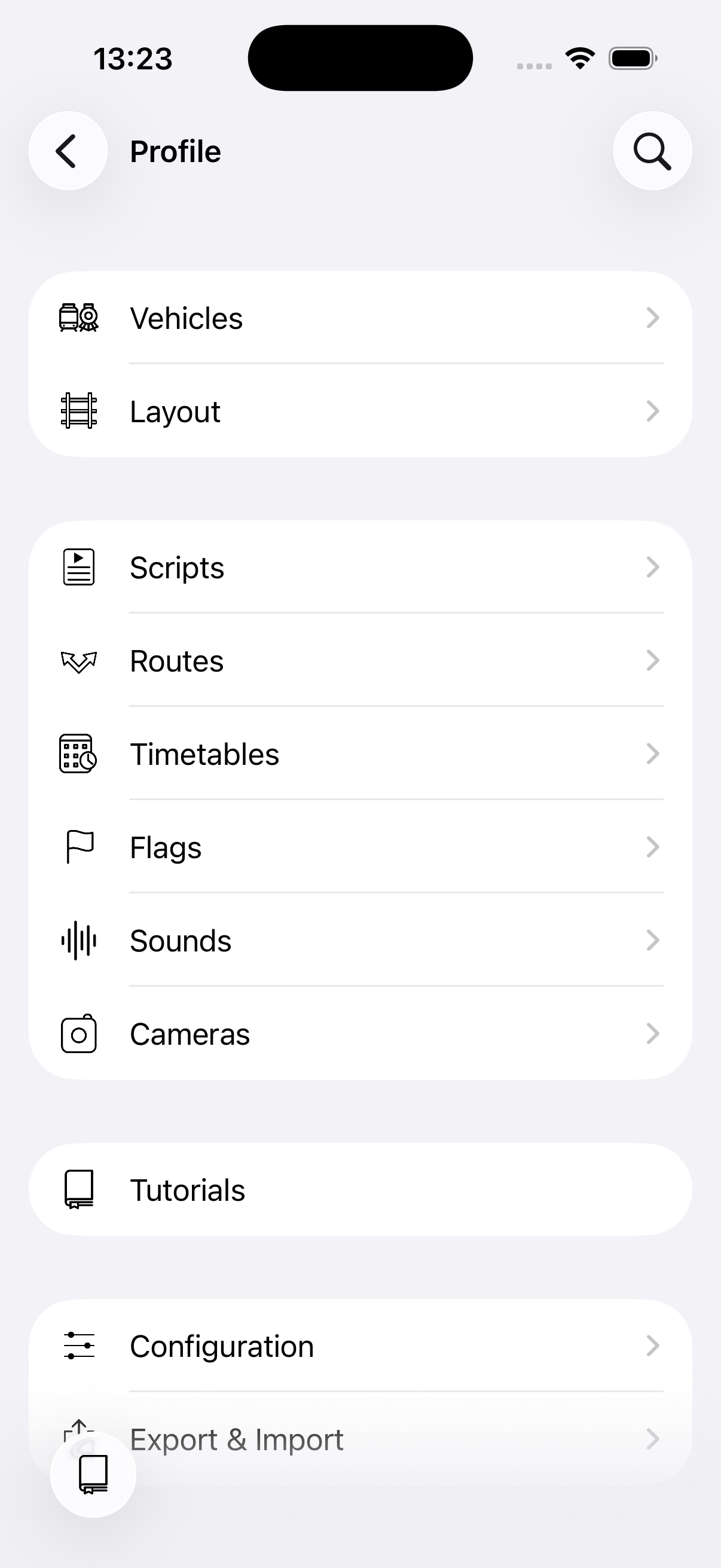
An example profile
What's inside a profile
A profile is organized into the following sections:
Layout & Vehicles
- Layout — Your track plan with all accessories (switches, signals, etc.) and their states.
- Vehicles — Your locomotives with their DCC addresses, functions, speed profiles, and consisting setup.
Automation
- Scripts — Sequential programs that control vehicles, accessories, and more. Scripts can be organized in folders for a clean overview.
- Routes — Predefined accessory combinations that set multiple switches and signals at once.
- Timetables — Schedules that run your scripts based on time-of-day.
- Flags — On/off toggles used for conditional logic in scripts (e.g. enable/disable sound during late-night sessions).
- Variables — Numeric values (0–255) for counting, tracking state, or coordinating between scripts.
- Sounds — Audio clips that can be played by your automation scripts, either from the built-in library or your own audio files.
- Cameras — Video feeds from local or remote cameras, usable as feedback sensors with AI-based vehicle detection.
Configuration
The configuration section defines how Model Train Script connects to your command station.
Command station — Select which system to use:
- Demo — A built-in simulator that requires no hardware. Great for exploring the app or building scripts offline.
- Z21 — Connects to a Roco/Fleischmann Z21 command station over your local network (UDP).
- ECoS — Connects to an ESU ECoS command station over your local network (TCP).
Connection settings — Set the IP address and port of your command station. The defaults work for most setups.
- Discover on network — Finds command stations on your local network and fills in the address with a tap.
- Test connection — Checks whether the configured command station is reachable.
The first time you use either, iOS asks for Local Network permission — tap Allow.
Feedback modules — Enable the feedback buses available on your system:
- R-Bus — For Z21 feedback modules.
- LocoNet — For LocoNet-compatible feedback devices.
- CAN — For CAN-bus feedback modules.
Advanced options — Additional settings for specific use cases, such as automatic accessory deactivation timers, stopping locomotives when a script ends, and manual intervention support during automation.
Managing profiles
You can create as many profiles as you like — for example, one for each layout you operate. All your profiles are shared across your Apple devices via iCloud.
To manage profiles, tap the MTS button in the top-left, then tap your current profile name and choose Switch profile. From there you can select a different profile, create a new one, or delete profiles you no longer need.
Sharing profiles
Profiles can be exported and shared with others. This lets you give friends or club members access to your layout configuration, including all vehicles, track plan, and automation scripts.